
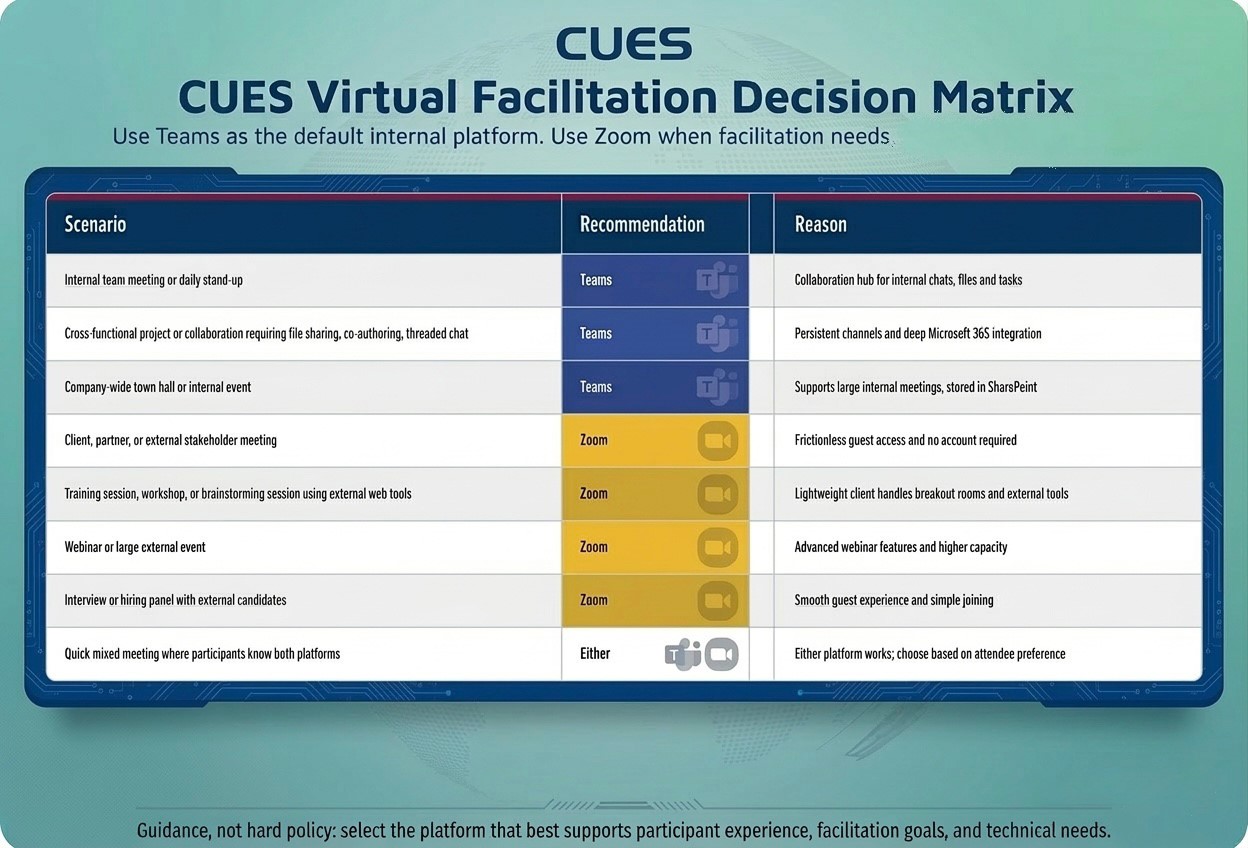
- Internal-only meetings and collaboration. Teams organizes conversations through Teams and channels; files are stored in SharePoint or OneDrive, and chats persist after the call. This makes it ideal for day-to-day team meetings, stand-ups, cross-functional projects, and company-wide town halls.
- Deep collaboration within Microsoft 365. Teams links directly with Outlook, Word, Excel, SharePoint, and Planner, so teams can co-author documents and manage tasks without leaving the platform.
- Internal events and town halls. Teams is well suited for internal broadcasts, leadership updates, and webinars that should stay inside the Microsoft environment.
- Compliance and information governance. Teams provides stronger administrative control over recording, transcription, access, and storage locations. That makes it the preferred option when retention and governance matter most.
Executive Summary
CUES is primarily a Microsoft Teams organization, but it also pays for Zoom. Teams is deeply integrated with Microsoft 365 and supports persistent chat, channels, file storage, and task management. Zoom is a video-first platform that excels at frictionless access for external participants, facilitated sessions, and larger webinars. This SOP aligns those platform strengths with CUES recording, note-taking, and governance expectations. CUES has decided to use TeamsMaestro as the best-fit solution for reliable meeting transcription, summaries, action extraction, and recording storage.
Working rule: Use Teams as the default for internal collaboration and use
TeamsMaestro as the preferred meeting intelligence layer for approved recordings,
transcripts, summaries, and follow-up actions. Use Zoom when facilitation needs, external
participation, or companion web tools make it the better fit.
Implementation decision: CUES will roll out TeamsMaestro through a structured pilot
followed by a staged implementation. This approach is intended to maximize adoption, improve organizational
clarity, and reduce time spent on manual note-taking and post-meeting follow-up.
Final Decision Logic
When to choose Teams
Best for internal-only meetings, persistent collaboration, Microsoft 365 co-authoring, governance, and recordings that should stay in approved CUES storage tied to SharePoint or OneDrive.
When to choose Zoom
Best for external participants, training sessions, workshops, interviews, and webinars where easy joining, breakout tools, and companion web apps matter most.
When either works
For quick mixed meetings where participants are comfortable with both tools and the meeting does not require deep collaboration, complex facilitation, or special governance handling.
When to choose Teams▼
When to choose Zoom▼
- Meetings with external participants. Zoom is simple to join and usually requires less setup or account friction for guests, which is helpful for client, partner, vendor, and interview meetings.
- Training, workshops, and brainstorming with companion tools. Zoom performs well when breakout rooms, annotation, polling, and tools like Miro or Mural are used alongside the meeting.
- Webinars and large external events. Zoom provides a polished experience for branded registration, practice sessions, and large-audience facilitation.
- Mixed meetings where joining ease matters. For quick meetings with outside participants, Zoom often reduces friction.
When either platform works▼
- Use either platform for small, informal mixed meetings when all attendees are comfortable with both and no special facilitation or governance requirements apply.
- When both are viable, choose based on attendee preference, host familiarity, and whether the meeting materials need to live with ongoing Teams-based collaboration.
TeamsMaestro Pilot & Staged Rollout
CUES has selected TeamsMaestro as the preferred meeting recording and AI note-taking solution because it best supports reliable transcription, concise summaries, action extraction, and approved recording storage. A structured implementation will help the organization adopt the tool consistently and reduce fragmented note-taking practices.
Why TeamsMaestro
Provides a stronger end-to-end experience for capturing meetings, generating useful summaries, extracting action items, and keeping artifacts in an approved workflow tied to CUES collaboration practices.
Pilot approach
Start with a limited pilot across a small set of teams and meeting types to validate accuracy, usability, permissions, storage behavior, and follow-up value before broader deployment.
Expected outcomes
Improve organizational clarity, increase consistency in follow-up, and reduce the time staff spend on manual note-taking, recap writing, and action tracking after meetings.
Recommended rollout phases▼
- Phase 1 — Pilot: Select a small group of internal meetings and team leaders to test TeamsMaestro in real operating conditions.
- Phase 2 — Review: Assess transcript quality, summary usefulness, action-item reliability, storage behavior, and user adoption feedback.
- Phase 3 — Staged rollout: Expand gradually by department or meeting type, with facilitator guidance, light training, and a clear support path.
- Phase 4 — Standardize: Make TeamsMaestro the default approved solution where recording and AI-generated meeting notes are appropriate.
Success measures▼
- Reduced time spent producing meeting recaps and follow-up notes.
- Higher consistency in action-item capture and ownership tracking.
- Improved staff confidence in where meeting recordings and summaries are stored.
- Greater clarity for leaders and teams on decisions, commitments, and next steps.
Operational Standards
These standards operationalize Section 11 of the CUES AI Governance page.
1. Consent and notification▼
- Do not record, transcribe, or use AI note-taking without clear participant awareness.
- At the start of the meeting, the facilitator should verbally state that recording and/or AI notes are being used.
- Use platform notifications and meeting invites to reinforce consent expectations.
- When consent is not granted, stop recording and switch to manual notes.
2. Approved tool usage▼
- Internal meetings: Prefer Teams with TeamsMaestro as the default approved solution for transcription, summaries, action extraction, and recording storage.
- External meetings: Zoom recording/transcription may be used when needed and when storage and access controls are followed, especially for meetings where Zoom is the better facilitation platform.
- Any new meeting assistant or note-taking AI must go through CUES review and approval before use.
3. Storage expectations by meeting type▼
- One-on-one meetings: Record only when needed and with consent. Store in restricted-access locations only.
- Leadership and organization-wide meetings: Store recordings and transcripts in approved shared locations defined by CUES.
- Department meetings: Store recordings and transcripts in the department’s approved SharePoint location.
- Do not leave downloaded recordings on local devices longer than necessary.
4. Security and retention▼
- Use SSO and role-based access wherever supported.
- Keep recordings, transcripts, and summaries inside approved CUES systems.
- Retention should follow the CUES information-governance schedule, generally no more than 12 months unless extended with justification.
- Exports should be encrypted and shared only with authorized parties.
5. AI output handling▼
- AI-generated summaries and action items are drafts and require human review.
- Verify important decisions, commitments, dates, and names before sharing broadly.
- Do not paste confidential transcript content into unapproved external tools.
6. Accessibility and facilitation▼
- Use transcription and captioning when they improve accessibility and meeting inclusion.
- Choose the platform that best supports participant experience, not just host preference.
- For facilitated sessions using multiple digital tools, consider total system load and participant ease.
Graphical Decision Matrix
Use this visual guide when deciding whether Teams or Zoom is the better fit for a meeting that may involve recording, transcription, or AI note-taking.
FAQ
Can I record a one-on-one meeting?▼
Yes, but only when there is a clear need, the other participant knows, and the file is stored in a restricted-access location.
Should I default to Teams or Zoom?▼
Default to Teams for internal collaboration, with TeamsMaestro as the preferred approved solution for transcription and AI note-taking. Move to Zoom when external participation, facilitation complexity, or companion web tools make it the better experience.
Are AI summaries considered final notes?▼
No. AI-generated summaries are drafts and should be reviewed for accuracy, sensitivity, and completeness before distribution.
Where should meeting files be stored?▼
Store them only in approved CUES locations tied to the meeting type, usually SharePoint, OneDrive, or another approved restricted-access repository.